
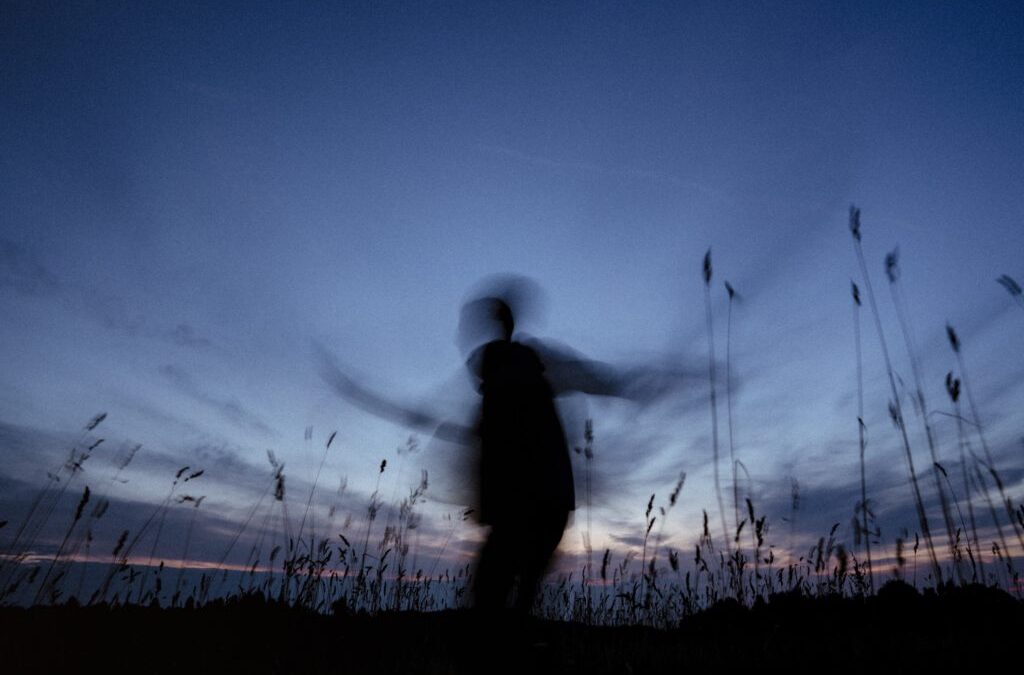
Adding motion blur effects in Photoshop can transform a static image into a dynamic scene, conveying speed, movement, or creative atmosphere. Whether you want to simulate the rush of a speeding car, the graceful motion of a dancer, or simply add artistic flair, mastering these techniques can significantly enhance your photo editing skills. This guide provides a step-by-step approach to applying and refining motion blur effects, along with practical tips for achieving professional results.
Before diving into the editing process, it’s helpful to understand the distinction between motion blur and similar effects, such as camera shake. For a deeper look at this topic, check out the article on motion blur vs camera shake.
Understanding the Motion Blur Effect
Motion blur is a photographic and digital editing technique that visually represents movement within an image. In photography, it occurs when the camera’s shutter speed is slow enough to capture the movement of objects. In digital editing, you can recreate or enhance this effect using Photoshop’s powerful tools, giving you complete control over the intensity, direction, and style of the blur.
There are several reasons to use motion blur in your images:
- Emphasize speed or direction
- Create a sense of energy or drama
- Draw attention to a subject by blurring the background
- Add artistic or surreal qualities to a photo
Preparing Your Image for Motion Blur Editing in Photoshop
Before applying any blur effects, it’s important to prepare your image for editing. Start by opening your chosen photo in Photoshop and duplicating the background layer. This allows you to work non-destructively and easily revert changes if needed.
- Open your image in Photoshop.
- Right-click the Background layer in the Layers panel and select Duplicate Layer.
- Rename the duplicated layer for clarity (e.g., “Motion Blur Effect”).
Working on a duplicate layer ensures your original photo remains intact, making it easier to experiment with different blur settings.

Applying Basic Motion Blur Filters
Photoshop offers several filters for creating motion blur effects. The most commonly used are the Motion Blur and Path Blur filters. Each provides different levels of control and creative possibilities.
Using the Motion Blur Filter
- Select your duplicated layer.
- Go to Filter > Blur > Motion Blur.
- In the dialog box, adjust the Angle to set the direction of the blur (e.g., horizontal for cars, vertical for falling rain).
- Modify the Distance slider to control the strength of the blur. Higher values create a more pronounced effect.
- Click OK to apply the filter.
This filter is ideal for straightforward, linear movement. For more complex or curved motion, consider using the Path Blur filter.
Exploring Path Blur for Advanced Effects
- With your layer selected, go to Filter > Blur Gallery > Path Blur.
- Use the on-image controls to draw paths that indicate the direction and flow of the blur.
- Adjust the Speed and Taper settings in the right-hand panel for more nuanced control.
- Experiment with the Edit Blur Shapes tool to refine the look of the motion trails.
- Once satisfied, click OK to apply the effect.
Path Blur is especially useful for simulating curved or irregular motion, such as spinning wheels or swirling water.

Refining and Masking Your Blur Effect
After applying a blur, you may want to limit its effect to specific areas of your image. Layer masks are a powerful way to control where the blur appears, allowing you to keep your main subject sharp while blurring only the background or certain elements.
- Select the blurred layer.
- Click the Add Layer Mask icon at the bottom of the Layers panel.
- With the mask selected, use a soft black brush to paint over areas you want to remain sharp. Painting with white will restore the blur if needed.
- Adjust brush opacity and hardness for more precise masking.
This technique is essential for realistic results, as it prevents the entire image from appearing uniformly blurred and helps maintain focus on your subject.
Tips for Realistic Motion Blur Editing in Photoshop
- Use Smart Objects: Convert your layer to a Smart Object before applying blur filters. This lets you adjust or remove the effect later without degrading image quality.
- Combine Multiple Blurs: For complex scenes, try stacking different blur types (e.g., radial and motion blur) on separate layers for added depth.
- Pay Attention to Shadows and Highlights: Adjust the blur intensity to match the lighting and natural movement in your photo.
- Check Edges: Use layer masks to carefully blend blurred and sharp areas, avoiding unnatural halos or artifacts.
- Preview at 100%: Always zoom in to check the details and make sure the effect looks convincing at full resolution.
For more inspiration and advanced techniques, you can explore this comprehensive motion blur photography tutorial that covers both in-camera and post-processing approaches.
Common Mistakes to Avoid
- Overdoing the Blur: Excessive blur can make your image look artificial. Subtlety often yields more realistic results.
- Ignoring the Subject: Always keep your main subject sharp unless the entire scene is meant to be in motion.
- Uniform Blur Application: Real-world motion blur varies in intensity. Use masks and gradients to create a more natural transition.
- Neglecting Context: Consider the direction and speed of movement in your scene to ensure the blur matches the action.
FAQ
How can I make only the background blurry while keeping the subject sharp?
To blur only the background, duplicate your image layer and apply the motion blur effect to the top layer. Add a layer mask and use a soft black brush to paint over the subject, revealing the sharp version from the layer below. This technique allows you to isolate the blur effect precisely.
What’s the difference between motion blur and camera shake?
Motion blur is intentional and follows the direction of movement, while camera shake results from unintentional camera movement, causing the entire image to appear smeared. For a detailed comparison, see motion blur vs camera shake.
Can I adjust the motion blur effect after applying it?
Yes, if you convert your layer to a Smart Object before applying the blur, you can double-click the filter in the Layers panel to reopen and adjust the settings at any time. This non-destructive workflow is highly recommended for flexibility.
Are there other creative uses for motion blur in Photoshop?
Absolutely. Besides simulating speed, you can use motion blur to create abstract backgrounds, emphasize movement in sports photography, or add a dreamy atmosphere to portraits. Experiment with different blending modes and layer opacities for unique results.