
For video and photo editors, achieving a natural sense of movement is often essential to creating visually compelling content. One of the most effective ways to add realism and energy to footage is through the use of motion blur plugins. These tools simulate the streaking effect that occurs when objects move quickly within a frame, helping to smooth transitions, enhance action, and add polish to both still images and video sequences.
In this comprehensive motion blur plugin guide, we’ll explore what motion blur is, why it matters for editors, and how to choose and use the right plugin for your workflow. Whether you’re working on cinematic projects, fast-paced commercials, or dynamic photography, understanding these tools can elevate your results.

If you’re interested in the technical differences between motion blur and similar effects, you may find this detailed explanation of motion blur vs camera shake helpful as you refine your editing techniques.
Understanding Motion Blur and Its Role in Editing
Motion blur is the visual effect that occurs when a moving object is captured over a period of time, causing it to appear smeared along its path of motion. In photography and videography, this effect is a natural result of slower shutter speeds or rapid subject movement. In digital editing, plugins replicate this phenomenon to add realism or stylized energy to footage.
Editors use motion blur for several reasons:
- Smoothing fast movements to avoid choppy or artificial-looking footage.
- Emphasizing speed in action scenes or sports content.
- Blending transitions between frames or scenes for a more cinematic feel.
- Correcting or enhancing footage shot at high shutter speeds that lacks natural blur.

For a deeper dive into the photographic side, this comprehensive overview of motion blur in photography covers the science and creative uses of the effect.
Choosing the Right Motion Blur Plugin for Your Workflow
With a variety of motion blur plugin options available, selecting the best fit depends on your editing platform, project needs, and desired level of control. Here are some key factors to consider:
- Compatibility: Ensure the plugin supports your editing software (such as Adobe Premiere Pro, After Effects, Final Cut Pro, or DaVinci Resolve).
- Performance: Some plugins are GPU-accelerated for faster rendering, which is crucial for high-resolution or complex projects.
- Customization: Look for plugins that offer adjustable parameters like blur amount, angle, and selective masking for precise results.
- Realism: The best tools mimic the physics of real-world motion, producing natural-looking streaks rather than generic smears.
- Support and Updates: Consider plugins with active development and good customer support to ensure compatibility with future software updates.
Before making a decision, it’s wise to test out trial versions or demos to see how each plugin integrates with your workflow and meets your creative needs.
How to Apply Motion Blur Plugins Effectively
Using a motion blur plugin is more than just dragging and dropping an effect onto your timeline. To achieve professional results, follow these best practices:
- Analyze Your Footage: Identify scenes that would benefit from added blur, such as rapid camera pans, fast-moving objects, or transitions.
- Adjust Plugin Settings: Fine-tune parameters like shutter angle, direction, and intensity. Avoid over-applying the effect, which can make footage look unnatural.
- Use Masking and Keyframes: Apply blur selectively to specific layers or objects, and animate settings over time for dynamic results.
- Preview and Compare: Regularly compare your edited footage to the original to ensure the blur enhances rather than distracts from the action.
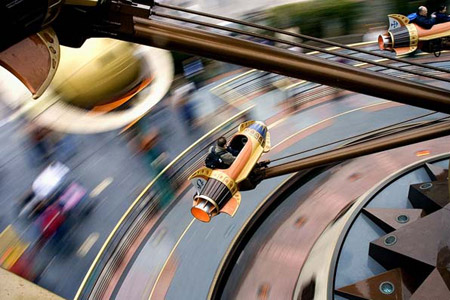
Mastering these techniques will help you create smoother, more engaging visuals that capture the energy of your subject matter.
Integrating Motion Blur Plugins with Other Editing Tools
Motion blur plugins are often used alongside other effects and tools to achieve a cohesive look. For example, combining blur with color grading, stabilization, or compositing can further enhance the realism and impact of your edits.
In industrial and manufacturing settings, motion blur can even play a role in vision inspection and machine learning applications. For those interested in automation and smart factory technology, our article on the importance of industrial vision inspection explores how visual effects and analysis intersect in modern production environments.
Common Challenges and Troubleshooting Tips
While motion blur plugins are powerful, editors may encounter some common issues:
- Artifacts or Ghosting: Excessive blur or incorrect masking can create unwanted trails or double images. Adjust settings and use masks to limit the effect to intended areas.
- Performance Slowdowns: High-quality blur effects can be resource-intensive. Consider pre-rendering or using proxies for smoother playback.
- Unnatural Results: If the blur doesn’t match the motion in your footage, tweak the direction and intensity, or use motion tracking features if available.
Regularly saving your project and working in layers can help you experiment without losing progress.
FAQ: Motion Blur Plugins for Editors
What is the main benefit of using a motion blur plugin?
The primary advantage is adding a sense of speed and realism to footage or images. Plugins allow editors to control the intensity and direction of blur, making fast movements appear smoother and more natural.
Are motion blur plugins compatible with all editing software?
Not all plugins work with every platform. It’s important to check compatibility with your specific editing software before purchasing or installing a plugin. Most major programs like Premiere Pro, After Effects, and Final Cut Pro have dedicated options.
Can motion blur plugins fix shaky footage?
While these tools can help smooth out some motion, they are not designed to correct camera shake. For that, stabilization plugins or tools are more appropriate. To understand the distinction, review the differences between motion blur and camera shake.